Block it out
Face pixelator — when blur isn't enough.
Sometimes a soft blur isn't the statement you want. A pixelated face censors with hard blocks — obvious, deliberate, and destructive to the original pixels. This face pixelator finds every face automatically; you choose the block size.
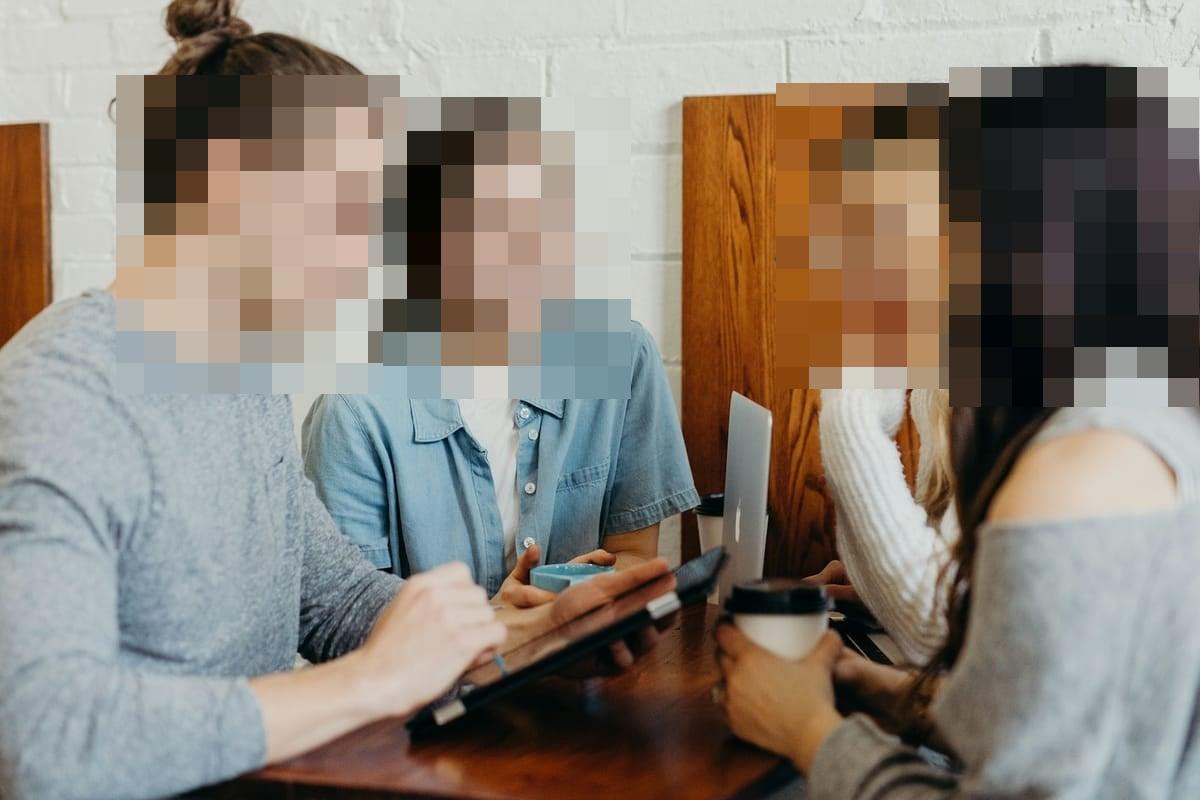

How it works for pixelate.
Drop the photo
JPEG, PNG, WebP, HEIC/HEIF — up to 20 MB. Faces are auto-detected the moment the upload lands.
Switch the style to Pixelate
Every detected face starts as a region on the canvas. Pick Pixelate in the style control and set the block size — bigger blocks, stronger censoring.
Export the flattened copy
The blocks are baked into the exported pixels — not an overlay, not a filter. EXIF and GPS metadata are stripped on the way out.
Questions, honestly answered.
- Pixelate or blur — which hides a face better?
- Both are destructive in Blurify's export, so neither can simply be 'un-filtered'. Pixelation reads as deliberate censorship and leaves nothing smooth to squint at; gaussian blur looks softer in casual photos. Pick by tone — or by how much you want the censorship to be seen. Want an emoji instead of blocks? Hide a face with an emoji does the same job with a sticker.
- Can pixelation be reversed?
- Honest answer: coarse pixelation of a small region has occasionally been reconstructed in research settings, especially with tiny block counts over text. For faces, use a generous block size — or use the Solid fill style, which replaces the region entirely and leaves nothing to reconstruct.
- Does it work on group photos?
- Yes — every detected face becomes its own region, and you toggle each one individually. Pixelate the strangers, keep your friends.
- What block size should I use?
- The default is chosen so a face at typical photo size becomes 8–12 blocks across — unrecognizable but obviously censored. Drag the slider and watch the live preview; if you can still read an expression, go bigger.
- Is pixelation the same as a mosaic effect?
- Yes — 'mosaic', 'mosaic censor' and 'pixelation' all name the same block-averaging effect. Bigger blocks mean a coarser mosaic and stronger censoring; the slider covers the whole range.
- Is there a face pixelator app for iPhone or Android?
- You don't need to install one — this face pixelator runs in the mobile browser on both, with touch controls for adjusting each region. No app, no account, and the pixelated export carries no watermark.
Guides
Try it. Your photo never leaves your hand.
Free, anonymous, deleted within an hour. No account to sign up for, no watermark on the export.
Open the editorOther things Blurify hides for you.
Anonymize people
faces
Blur faces in seconds. Auto-detected, manually adjustable.
See how →
Every face, hidden in one pass
anonymous
Anonymize every face in a photo — found and hidden in one pass.
See how →
Hide a plate, hide the vehicle
plates
Strip a license plate from a car photo before you post it.
See how →
Car number, reg plate — covered
hidden
Hide a car number or reg plate before the photo goes public.
See how →
Hide names, numbers, addresses
documents
Black out names, numbers, and signatures on a document photo or scan.
See how →
Show the bug, hide the data
screens
Sanitize a screenshot before sharing the bug or the chat.
See how →
The metadata you can't see
exif
Strip GPS, camera model and timestamps from any photo.
See how →
Names, numbers, anything written
text
Hide names, emails and numbers written anywhere in an image.
See how →
Your home stays private
address
Blur a house number or street sign before a listing goes live.
See how →
Blur, pixelate, black bar, or an emoji
censor
Censor a photo with blur, pixel blocks, a black bar, or an emoji.
See how →
One spot, not the whole shot
region
Blur one region of a picture and keep the rest sharp.
See how →
Blur nudity
nudity
Auto-detects nudity per body part. Blur only what needs hiding.
See how →
Emoji face cover
emoji
Put an emoji or a sticker over any face — found automatically, covered completely.
See how →
The room behind you talks
backdrop
Hide the room, the street, or the office standing behind you.
See how →