Blur the background, keep the subject sharp
Free · no account · no watermark · full resolution · auto-deleted in 1 hour
Drop images here, or click to upload
Choose files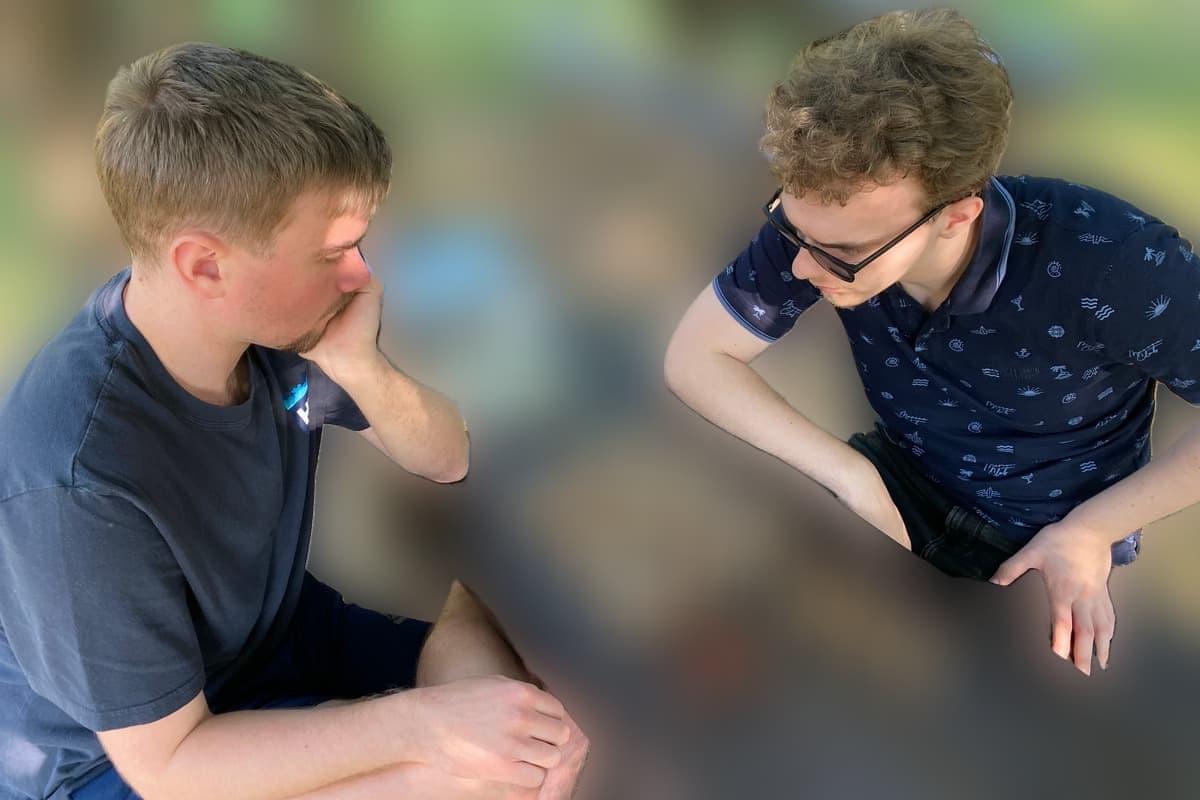

Drop a photo and Blurify finds the subject — one mask, found for you — then blurs everything behind it: the room, the street, the desk, the people in the background. You choose how strong. It works for a portrait look and for hiding where a photo was taken, and the download keeps the original resolution. If you would rather cut the subject out than soften what is behind it, the same mask does that too.
What else you can hide
Anonymize people
faces
Blur faces in seconds. Auto-detected, manually adjustable.
See how →
Every face, hidden in one pass
anonymous
Anonymize every face in a photo — found and hidden in one pass.
See how →
Hide a plate, hide the vehicle
plates
Strip a license plate from a car photo before you post it.
See how →
Car number, reg plate — covered
hidden
Hide a car number or reg plate before the photo goes public.
See how →
Hide names, numbers, addresses
documents
Black out names, numbers, and signatures on a document photo or scan.
See how →
Show the bug, hide the data
screens
Sanitize a screenshot before sharing the bug or the chat.
See how →
Block it out
pixelate
Censor a face with hard pixel blocks instead of a soft blur.
See how →
The metadata you can't see
exif
Strip GPS, camera model and timestamps from any photo.
See how →
Names, numbers, anything written
text
Hide names, emails and numbers written anywhere in an image.
See how →
Your home stays private
address
Blur a house number or street sign before a listing goes live.
See how →
Blur, pixelate, black bar, or an emoji
censor
Censor a photo with blur, pixel blocks, a black bar, or an emoji.
See how →
One spot, not the whole shot
region
Blur one region of a picture and keep the rest sharp.
See how →
Blur nudity
nudity
Auto-detects nudity per body part. Blur only what needs hiding.
See how →
Emoji face cover
emoji
Put an emoji or a sticker over any face — found automatically, covered completely.
See how →
The room behind you talks
backdrop
Hide the room, the street, or the office standing behind you.
See how →
Take the scene away entirely
Remove the background
Cut the subject out and download it as a transparent PNG at full resolution.
See how →
Hide where the photo was taken
Hide the background
What to do when the wall behind you gives away more than the subject in front.
See how →
How it works
Drop your photo
Add up to 20 images per batch — JPEG, PNG, WebP or HEIC/HEIF, 20 MB each. The subject is found automatically; it takes a few seconds per photo.
Set the blur
Drag the Background blur slider until nothing behind the subject is readable — no sign, no screen, no house number. Faces, plates and text inside the sharp area can be blurred separately on top.
Download
Export as JPG, PNG or WebP at the full original size with EXIF and GPS stripped. Switch to Remove for a transparent background instead, or to Color for a flat backdrop in any hex colour.
Questions, answered
- Is it free?
- Free for 5 images a month — no account, no watermark. Heavier use buys a one-time pack from $1.99, and each uploaded photo counts once however often you re-download it.
- Will the background still be recognisable?
- Not at the strong settings: a wide blur turns a room or a street into colour and light. Check the preview — if a sign or a screen is still readable, raise the slider.
- Is this the same as portrait mode?
- Visually, yes — a sharp subject over a soft background. The difference is that you set the strength afterwards, on any photo, and the original file is never touched.
- Can I remove the background instead of blurring it?
- Yes, from the same subject mask. Switch the Background panel to Remove and the photo comes back cut out on a transparent background, exported as PNG or lossless WebP — never JPEG, which cannot carry transparency.
- Can I put a white background behind the subject instead?
- Yes. Color fills everything behind the subject with any hex value you type — plain white for a product photo, a brand colour for a slide — and the subject keeps its own edges either way.
- Does it keep the original resolution?
- Yes. The subject is found on a working copy and the blur is applied to your original pixels, so nothing is downscaled.
- What happens to my photo?
- It is uploaded to private, encrypted storage, processed on Blurify's own servers — never a third-party background-removal service — and deleted within an hour. Nothing is used to train a model.