The room behind you talks
Hide what's in the background of your photo.
A photo of you is also a photo of wherever you were standing — the kitchen, the open-plan office, the street sign over your shoulder, the shelf of parcels with an address label on top. Blurify finds the subject and treats everything behind it: cut it out, blur it until nothing in it reads, or replace it with a flat color.
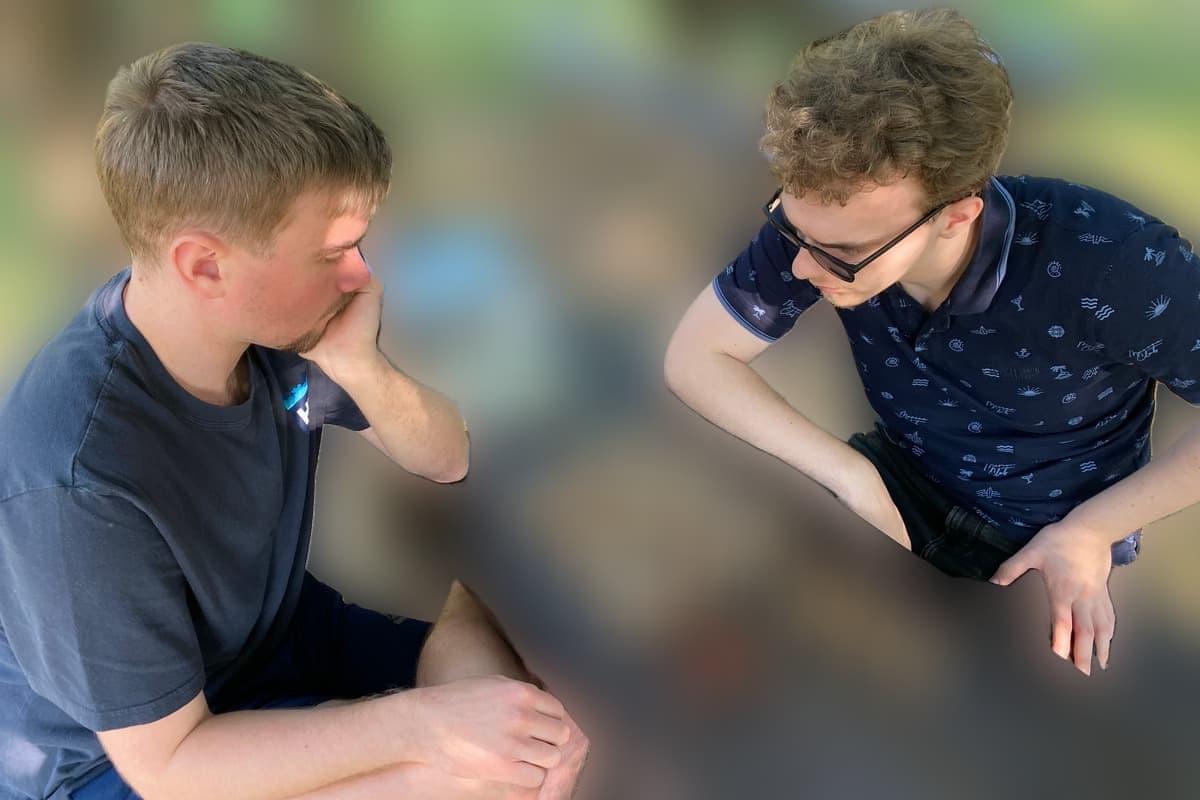
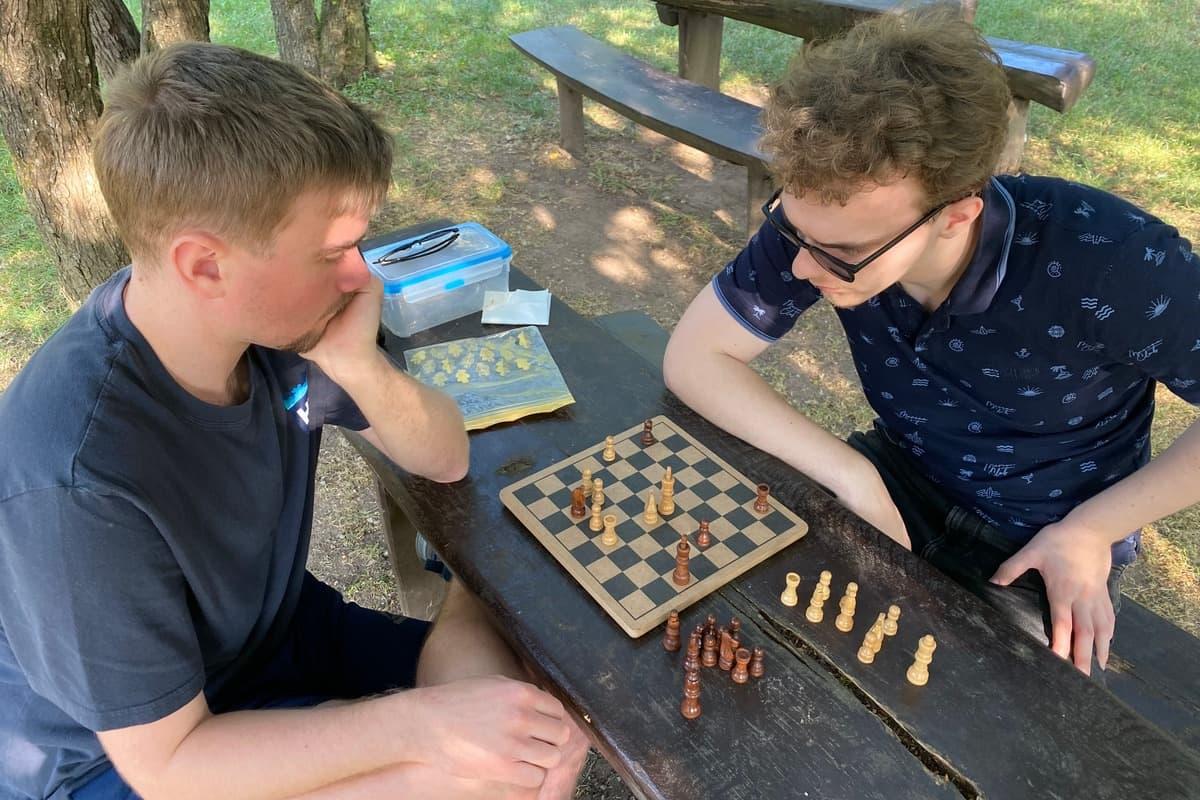
How it works for backdrop.
Drop the photo
JPEG, PNG, WebP, HEIC/HEIF — up to 20 MB each, up to 20 photos per batch. Nothing to trace by hand and nothing to install.
The subject separates from everything else
One mask, found automatically: a person, a product, a car, a pet. Hair and thin edges survive it. Everything outside that mask is what this page is about.
Cut, blur, or fill — then export
Remove gives you a transparent PNG (or lossless WebP). Blur keeps the scene but makes it unreadable. Color puts any hex color in behind the subject. Full original resolution, EXIF and GPS stripped.
Questions, honestly answered.
- What does a background actually give away?
- The place, usually more precisely than you meant: a house number or a street sign in the corner, a shop front, a company or school logo, a colleague at the next desk, a monitor or a whiteboard, the label on a parcel by the door. The guide below walks through what to look for before you post.
- Cut it out, blur it, or replace it — which one?
- Cut it out when the background is irrelevant and you want a transparent PNG to drop onto something else. Blur it when the photo should still look like a photo of a real place. Fill it with a flat color when the room is a distraction, or when a listing wants a clean white background. The comparison guide takes all three apart.
- Can I keep one person and hide another?
- Not with this. The subject is found as a single mask, so two people standing at different depths are either both subject or both background, and the mask decides that, not you. To hide one specific person in an otherwise untouched photo, draw a region over them instead — that's what Blur part of an image is for.
- Does it work on a product, a car, or a pet?
- Yes. The mask is not face-specific — it finds whatever the photo is obviously of. A product photo cut out onto a white background is the same operation as a portrait with the room removed behind it.
- Is anything of the original background left in the file?
- No. The export is a destructive re-encode, not a filter layered over an intact original: cut out and those pixels are transparent, filled and they are flat color, blurred and what is written into the file is the blur. Keep your own copy if you might want the room back.
- Do you keep the photo?
- No. It's uploaded to private encrypted storage, processed on Blurify's own servers rather than a third-party background service, and deleted within an hour. No account, no watermark, and the download carries no EXIF or GPS.
Guides
Try it. Your photo never leaves your hand.
Free, anonymous, deleted within an hour. No account to sign up for, no watermark on the export.
Open the editorOther things Blurify hides for you.
Anonymize people
faces
Blur faces in seconds. Auto-detected, manually adjustable.
See how →
Every face, hidden in one pass
anonymous
Anonymize every face in a photo — found and hidden in one pass.
See how →
Hide a plate, hide the vehicle
plates
Strip a license plate from a car photo before you post it.
See how →
Car number, reg plate — covered
hidden
Hide a car number or reg plate before the photo goes public.
See how →
Hide names, numbers, addresses
documents
Black out names, numbers, and signatures on a document photo or scan.
See how →
Show the bug, hide the data
screens
Sanitize a screenshot before sharing the bug or the chat.
See how →
Block it out
pixelate
Censor a face with hard pixel blocks instead of a soft blur.
See how →
The metadata you can't see
exif
Strip GPS, camera model and timestamps from any photo.
See how →
Names, numbers, anything written
text
Hide names, emails and numbers written anywhere in an image.
See how →
Your home stays private
address
Blur a house number or street sign before a listing goes live.
See how →
Blur, pixelate, black bar, or an emoji
censor
Censor a photo with blur, pixel blocks, a black bar, or an emoji.
See how →
One spot, not the whole shot
region
Blur one region of a picture and keep the rest sharp.
See how →
Blur nudity
nudity
Auto-detects nudity per body part. Blur only what needs hiding.
See how →
Emoji face cover
emoji
Put an emoji or a sticker over any face — found automatically, covered completely.
See how →