The three treatments, defined
All three start in the same place. The subject — a person, a product, a car, a pet — is found automatically as one mask, and everything outside that mask is the background. Nothing is applied while you're looking at the preview; the treatment is written into the pixels when you export.
Removing cuts out. The background pixels are dropped and what remains is the subject over nothing at all, which is what a transparent background actually is: an alpha channel where the room used to be. This is the operation people mean when they search for a background remover, and the file it produces is a cutout rather than a photograph.
Blurring transforms. The background pixels stay where they are and get averaged with their neighbors across a radius, so the scene survives as color, shape and light while the detail dissolves. It still looks like a photo taken in a place — you just can't say which place.
Filling replaces. The background becomes one flat color — any hex value, white and black included — and the original pixels are gone rather than softened. It is the cutout's result with something put back behind it, and it is the treatment that makes a photo look deliberate rather than edited.
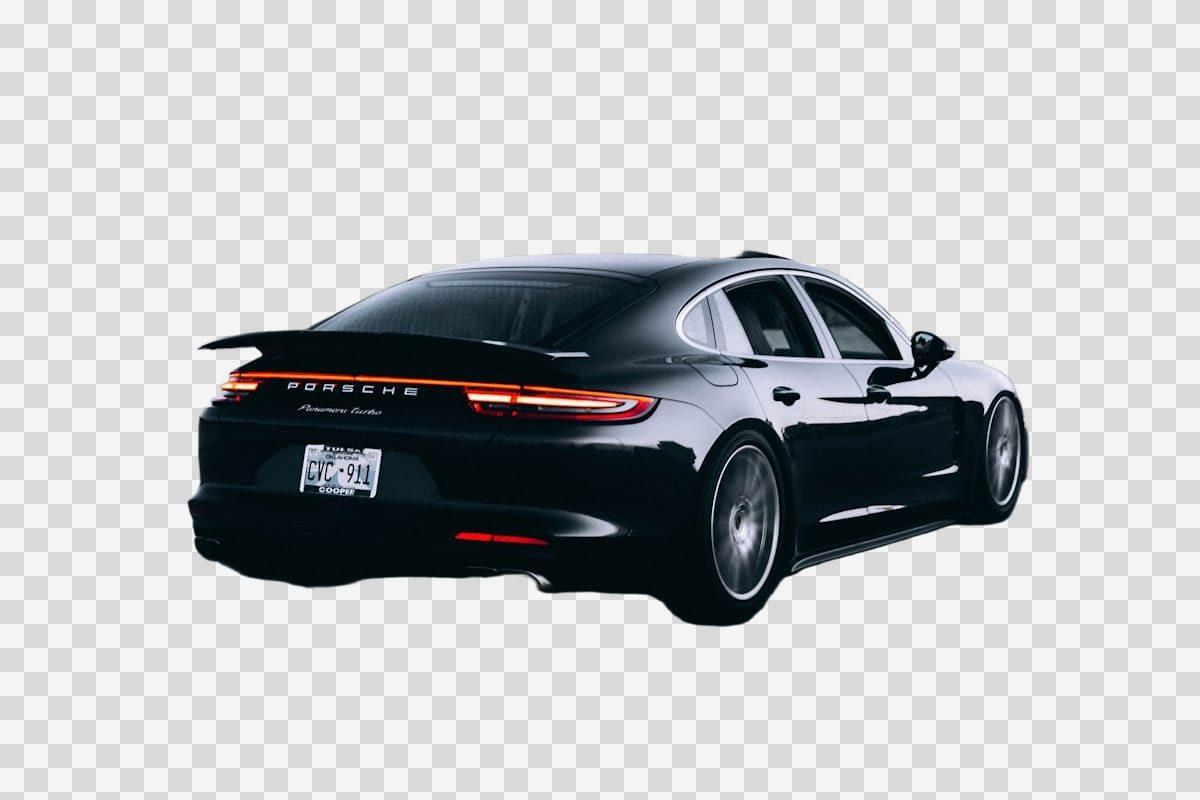
What each one leaves behind
A cutout leaves nothing. There is no weak version of it and no setting to get wrong: the pixels outside the mask are not in the exported file, so there is nothing to sharpen, enhance or reconstruct. What it can get wrong is the edge — a strand of hair, a wine glass, a chain-link fence — and an edge error shows you a sliver of the room rather than the room.
A blur leaves the scene's structure, and how much of it depends entirely on strength. A light blur over a wide room is usually fine, because a room is large and full of low-contrast detail; a light blur over something small, short and predictable — a plate, a house number, a line of text — is the case where deblurring work has teeth. When the background contains one of those, either take the strength up or cover that thing with its own region.
A flat color leaves nothing either, and it is the one treatment that changes the picture rather than the background. That is sometimes the point: a subject on white is a product shot, and a subject on the room is a snapshot. Choose it when you want the second to become the first, not when you want the photo to stay a photo.
A cutout needs a transparent PNG
JPEG has no alpha channel. That is not a Blurify limitation, it is the format: a JPEG cannot store "nothing here", so a cutout saved as JPEG gets flattened onto some color, almost always white, and you have quietly made a white background rather than a transparent one. Blurify will not export a cutout as JPEG for exactly that reason — the choice is PNG or lossless WebP.
PNG is the safe answer and the one most tools, marketplaces and slide decks accept without argument. Lossless WebP is the same picture in a smaller file and is worth using where you know what will open it. Both keep the original resolution: the mask is found on a working copy and applied to your own pixels, so a 12-megapixel photo comes back at 12 megapixels.
If what you actually want is a white background — a product photo for a listing, a headshot for a directory, an image that has to sit on a white page anyway — say so up front and pick the flat color instead of exporting a transparent PNG and flattening it later. Same result, one step, and no surprise about which shade of white you got.
Cut out a backgroundWhen a flat color beats both
A product photo is the clearest case. A marketplace wants the item, not the kitchen table it was photographed on, and a blurred kitchen table is still visibly a kitchen table. Flat white, or whatever color the listing uses, makes the object read as merchandise and makes a set of photos look like a set rather than a collection of snapshots.
Profile pictures and slides are the second case. A blurred office says "I was in an office"; a flat color says nothing at all, which is the point when the photo is going on a public profile that strangers will study. It also survives being cropped into a circle, resized, and shown against someone else's dark theme without the background turning to mud.
The case against it is honesty of appearance. On a candid photo, a flat color looks like an edit, and an obvious edit invites the question of what was removed. If you'd rather nobody asked, a strong blur attracts less attention while hiding the same amount — which is the trade the whole comparison comes down to.
How the subject mask works
The order matters more than the treatment does. On upload the photo goes to encrypted storage and the subject is found there as a single mask — one subject, not a list of objects you pick from — and the preview shows you the result on a checkerboard before anything is final. Two people at different depths are either both subject or both background; the mask decides that, and you cannot split them.
The treatment is applied at export. The file is re-encoded with your choice written into the pixels, EXIF and GPS are dropped on the way out, and nothing of the original scene survives except what the treatment kept. That is what makes the choice between cutting out, blurring and filling a real one rather than a preview setting.
You can also combine it with the region tools. A face or a plate inside the sharp subject can be blurred on top, and the cover stays inside the cutout — useful for a car listing where the vehicle is the subject, the driveway behind it should go, and the plate on the front still needs a block over it.
Try it on a photo