Two different problems, two different fixes
Google's Street View imagery is Google's to edit, so hiding your house there means asking Google — there's an official request flow, and it works. Your own photos are the opposite: nobody will blur them for you, but you can do it yourself in under a minute. Most people who search for this need both, because a house that's blurred on Street View is still perfectly visible in the listing photos posted last spring.
Blur your house on Google Street View
Google's process, per their own help documentation: open Google Maps in a desktop browser (the request can't be filed from the mobile app), search your address, and open the Street View image of your house. In the corner of the image, click "Report a problem" — it's small, but it's there. Under "Request blurring", choose "My home", then adjust the red box until it covers what you want blurred and submit with your email address.
Two things to know before you file it. Google states the blur is permanent — once applied, it can't be undone, including for future imagery, so be sure before you ask. And the request is meant for the people who live there: Google may ask for verification that it's your home, and processing can take a while, so don't expect the map to change the same day.
Blur your house in your own photos
The photos you control are the bigger exposure in practice: a for-sale listing, a garden photo with the house number in frame, a delivery picture with the street name on the curb. Drop the photo into the editor and drag a region over the number, the door, or the whole facade — whatever the photo doesn't need to show. Blur, pixelate or a solid block, then export.
House numbers deserve special attention because they're small, sharp and high-contrast — exactly what zooming is for. The same goes for street signs caught in the background and anything with your name near the door. If the photo is going on a marketplace or a social feed, assume someone will pinch-zoom every corner of it.
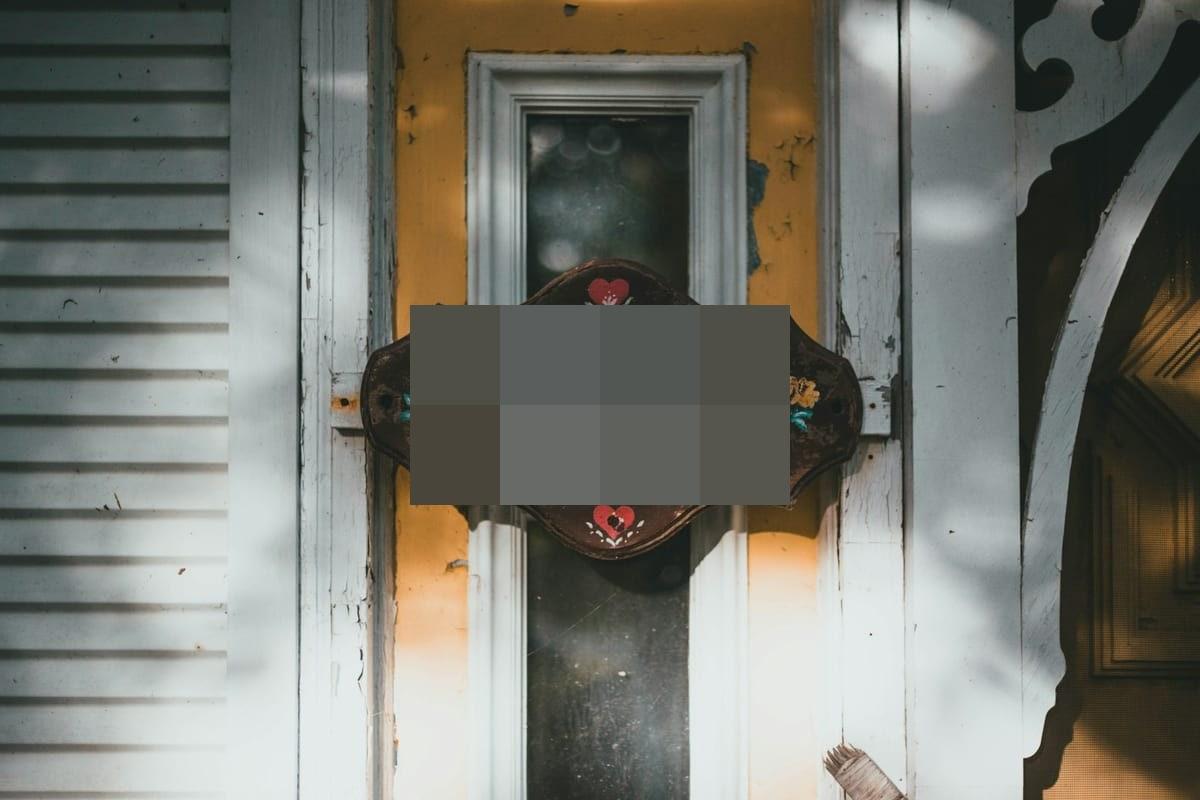
The location your photo carries anyway
A photo of your house taken with your phone almost certainly has your home's GPS coordinates written into its EXIF metadata — blurring the house number while posting the coordinates defeats the point. Blurify strips EXIF and GPS from every export automatically, so the downloaded file carries neither the number in the pixels nor the location in the metadata.
Open the editor